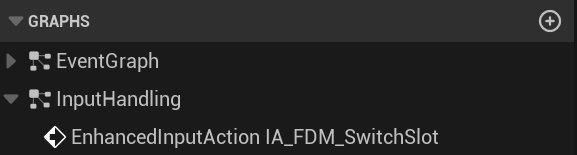
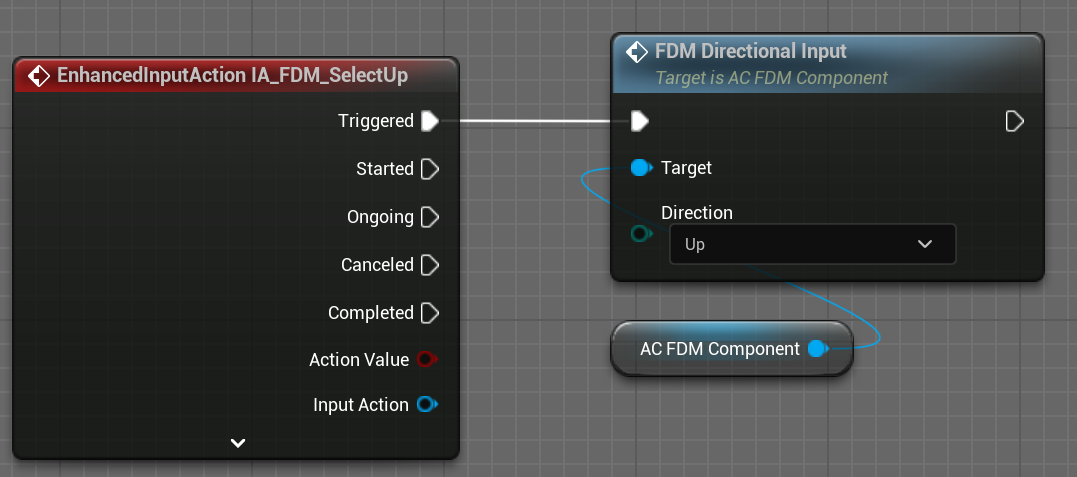
IA_FDM_SelectUp, IA_FDM_SelectDown, IA_FDM_SelectLeft, IA_FDM_SelectRight input action events in your character/player controller.
Then you need to call FDM Directional Input function on Triggered Event with corresponding direction input
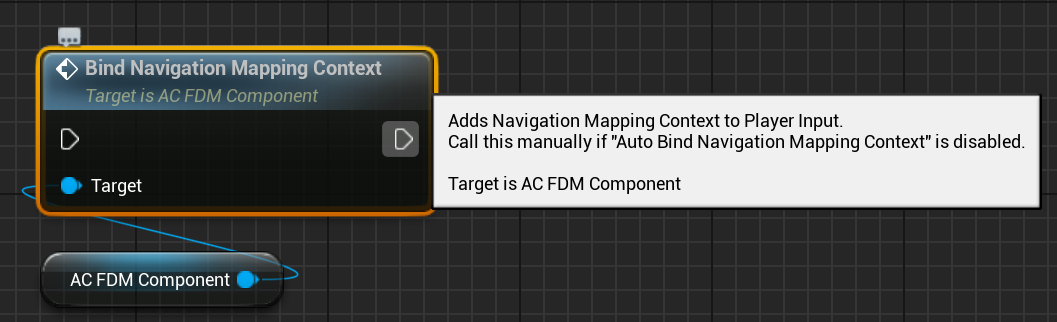
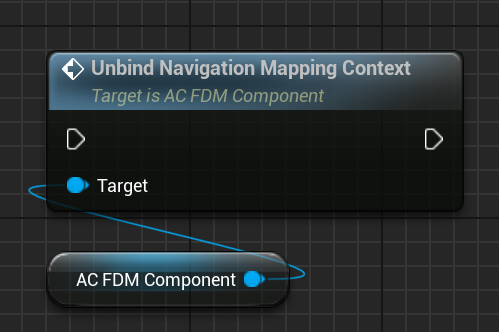
By default, FDM Component applies Navigation Mapping Context to Player Input automatically after the initialization, but you might not always want to apply the mapping context at the beginning, so you have the option to disable it from within the config asset.

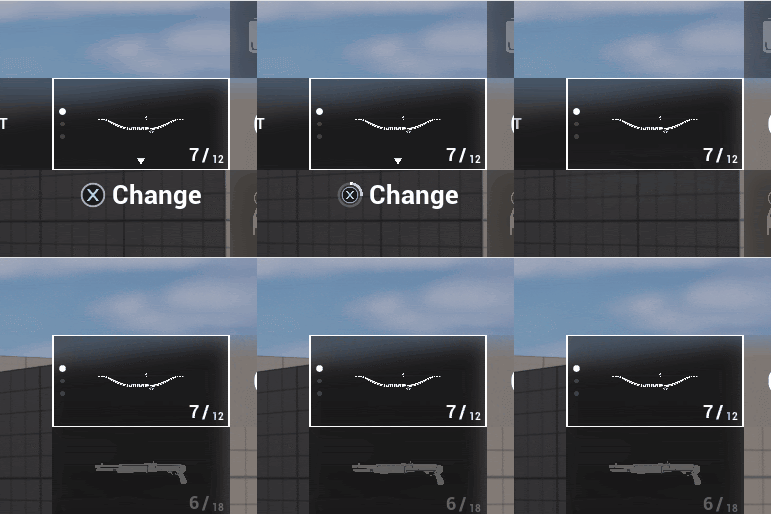

- On Slot Action Started: When you start holding down the button
- On Slot Action Progress(float): When pressing the button and the container has not yet opened
- On Slot Action Triggered: When you press and hold the button long enough
- On Slot Action Completed: When you held the button enough
- On Slot Action Cancelled: When you release the button before you hold it enough.
- On Nested Menu Changed: When you open or close a container.
AC_FDM_Component > Input Handling Graph.