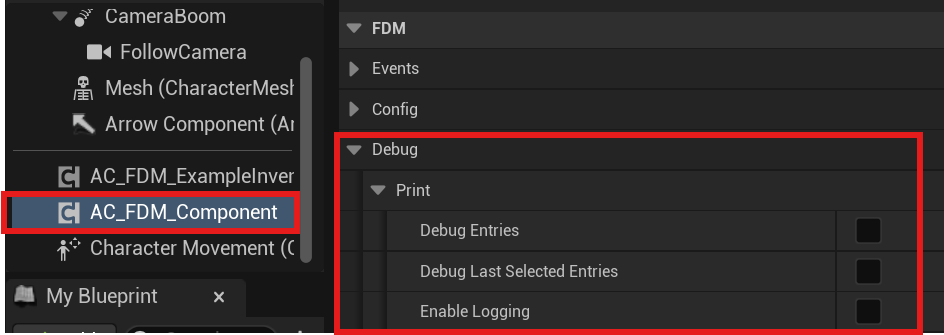
Input & Visibility
The menu does not appear when I press the input key.
Check the following:- If you have deactivated the “Use System Defined Main Widget” option, you must implement the
BPI_FDM_ComponentOwnerinterface and theGet FDM Widgetfunction in the actor where you add the Component. - Ensure
AC_FDM_Componentis added to the correct actor (usually the Player Character or Controller) and Input Action Events bound correctly. - Verify that
InitializeFDMComponentis called during BeginPlay or initialization. - If you disabled
Auto Bind Navigation Mapping Contextin your config, you must callBind Navigation Mapping Contextmanually after you called the initialization function. - Make sure
Navigation Input Mapping Contextin the Config file is valid. - If
Widget Should Be Hidden by Defaultis enabled, ensureRequestShowMenuis being called. - Increasing
Navigation Mapping Context Prioritymight solve this problem.
The menu appears but does not respond to input.
In addition to methods that could solve the previous problem check the following:- Check that no other system is currently consuming input (e.g., modal widgets, pause menu).
- Confirm
Should Process FDM Inputfunction inAC_FDM_Componentreturns true.
The Menu appears twice
This usually means:Use System Defined Main Widgetis still enabled, and- You also manually added
WBP_FDM_Widgetto your own HUD.
Which actor should implement BPI_FDM_ComponentOwner?
Typically the Player Character or Player Controller — whichever owns the AC_FDM_Component.
Slot Switch Menu does not open
- Check that the container has more than one slot.
- Verify the
Change Slot Mapping Contextis active. - Ensure that the input is not being consumed by another system. Increasing
Change Slot Mapping Context Prioritymight solve this problem.
My entries are not being added to the menu.
- Make sure the source object implements
BPI_FDM_EntrySourceObject. - Verify that
GetEntryMetadatareturns a valid metadata struct. - Check that the Layout Tag in metadata exists in
Layout Datain the config.
Layout & Placement
My entry appears in the wrong container or direction
- Check the Gameplay Tag in the entry metadata.
- Verify that the tag maps to the intended container location in
Layout Data. - Remember: Layout initialization order determines proximity to the center.
Entries overlap or spacing looks wrong
- Verify
Padding Between SlotsandPadding Between Containers. - Check that all Slot Widgets use consistent size or scaling rules.
- Ensure no external layout panels override widget size.
The slot animation looks jittery or overshoots
- Reduce
Slot Interp SpeedorAccordion Animation Interp Speed. - Make sure animation logic is not running in Event Tick unnecessarily.
- Avoid simultaneously driving position from animation and manual interpolation.
Appearance
Why do some slot widgets ignore show/hide animations?
This can happen if the slot uses a material with Blend Mode set to Opacity Mask. Opacity Mask materials do not always respond correctly to UI fade animations. To fix this, change the material’s Blend Mode to Translucent.Why doesn’t my icon size match the value I set in metadata?
When a slot is added to the menu, it is automatically wrapped inside a SizeBox for layout control. If your icon appears smaller or larger than expected, this is likely due to the SizeBox scaling behavior. Instead of increasing the icon size in metadata, adjust the slot’s Render Transform → Scale value in metadata.Selection
Selection feels too fast / too sensitive or Selection triggers while navigating quickly between containers
- Enable
Use Debounced Selection. - Increase
Debounce Duration in Seconds.
Performance
Is this system expensive?
No — the menu only updates when:- Entries change,
- Selection changes,
- The menu is visible.
Networking
Is it safe to use in multiplayer?
This system is UI-side and non-replicated by default. It is safe for multiplayer, but entry and selection replication must be handled by the game.Integration
Can I use this with my own inventory system?
Yes. Any object can be an entry as long as it implementsBPI_FDM_EntrySourceObject and provides valid metadata.