1. Import the Layout Tags
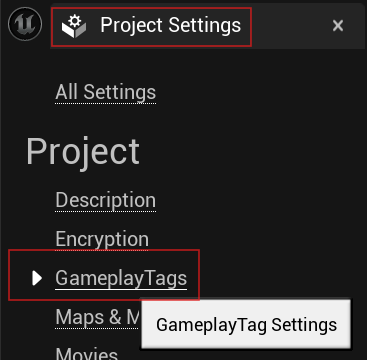
Open your project’s gameplay tag settings fromEdit > Project Settings > Gameplay Tags
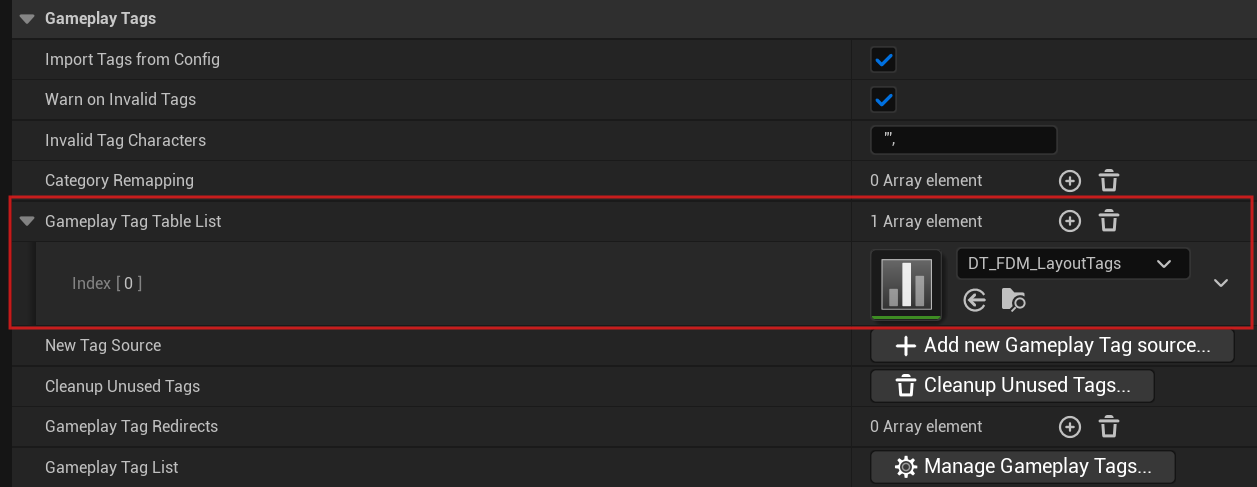
DT_FDM_LayoutTags to your Gameplay Tag Table List.
2. Add AC_FDM_Component
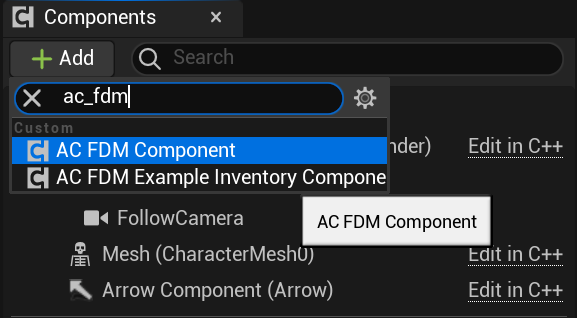
AddAC_FDM_Component to your Player Character or Player Controller.
3. Assign a Config asset
Assign a Config asset for the component.
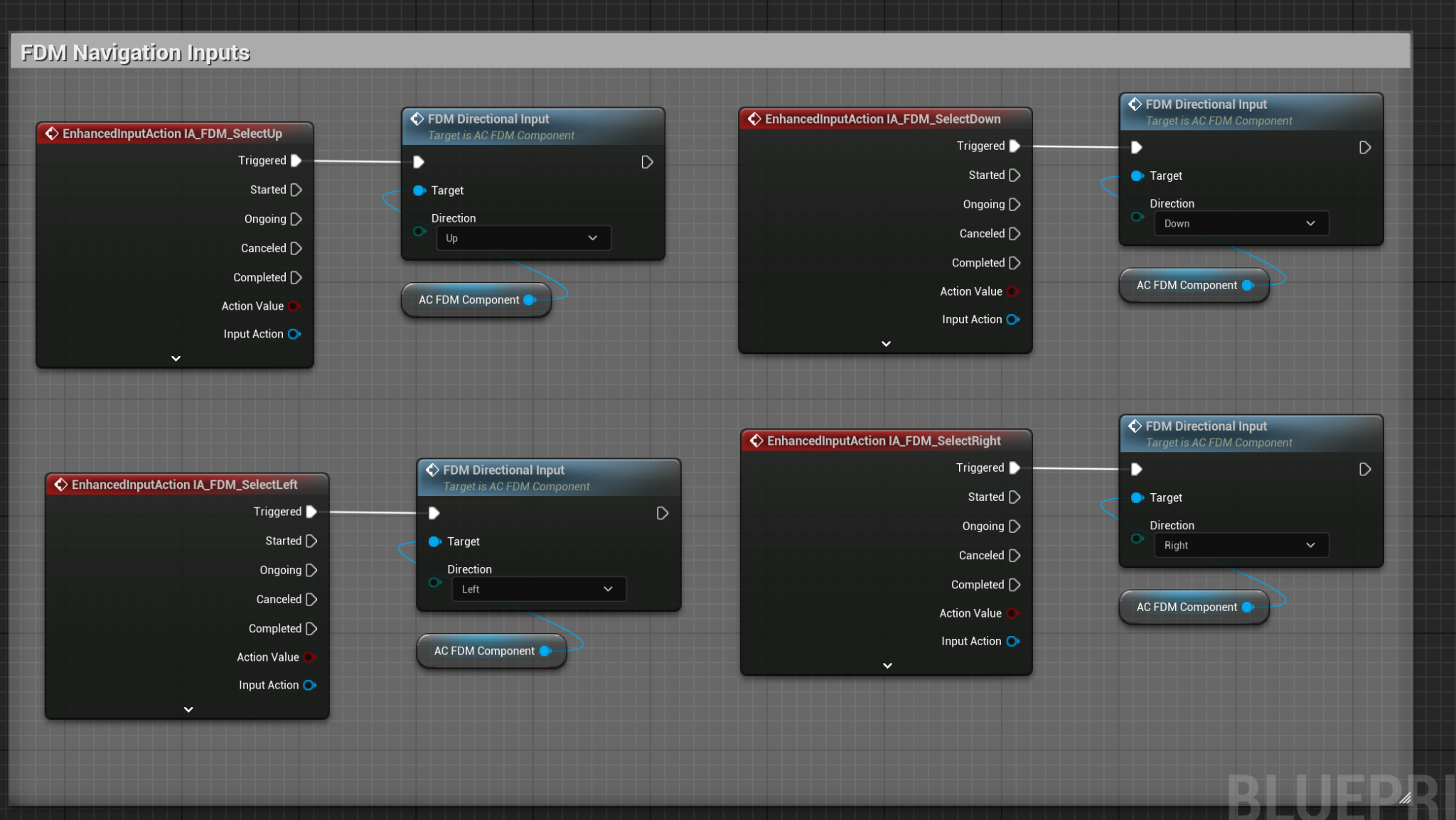
4. Add Input Actions
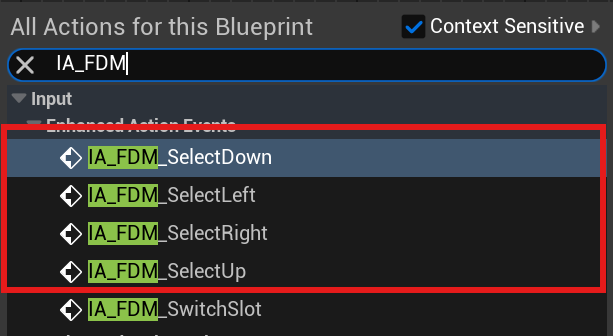
Add the following input actions:IA_FDM_SelectDownIA_FDM_SelectLeftIA_FDM_SelectRightIA_FDM_SelectUp
5. Optional: Example Inventory
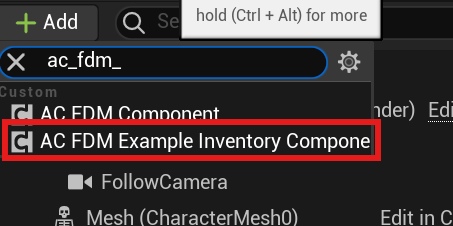
AddAC_FDM_ExampleInventoryComponent and assign a starting item asset.

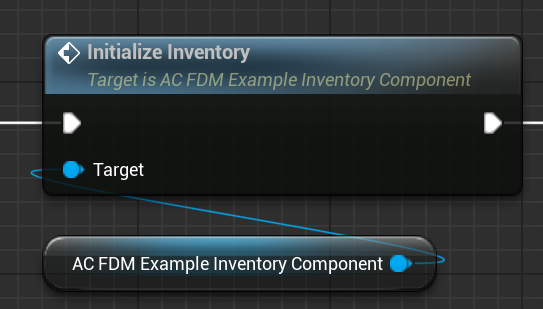
6. Initialize the FDM Component
Call Initialize FDM Component when your character/controller is ready (typically on Begin Play).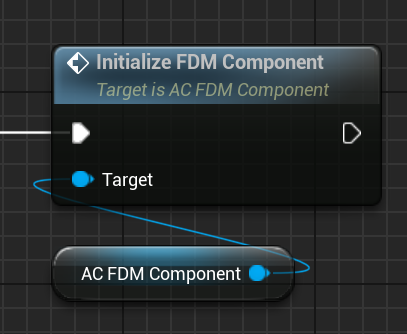
7. Use your own system
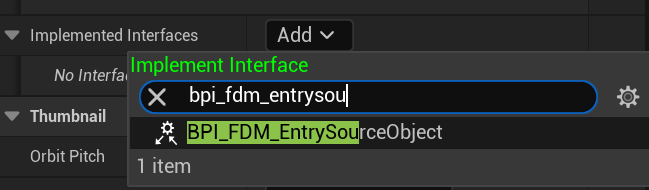
Open the blueprint of the object (must derive fromUObject) and implement the BPI_FDM_EntrySourceObject interface.
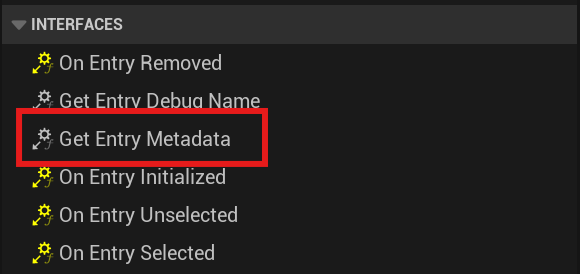
Get Entry Metadata.
8. Add entries
Add entries by using the Add New Entry function.