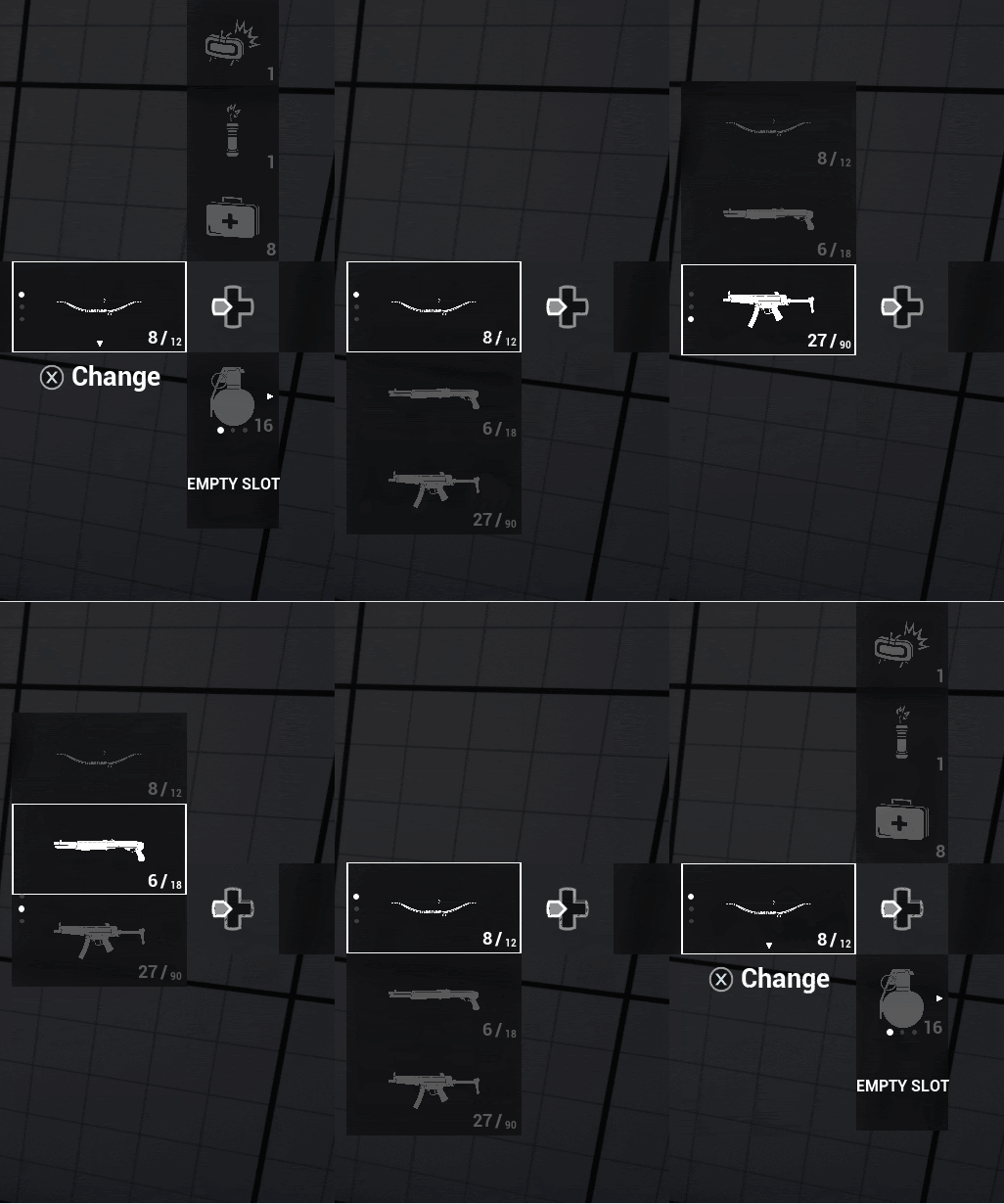
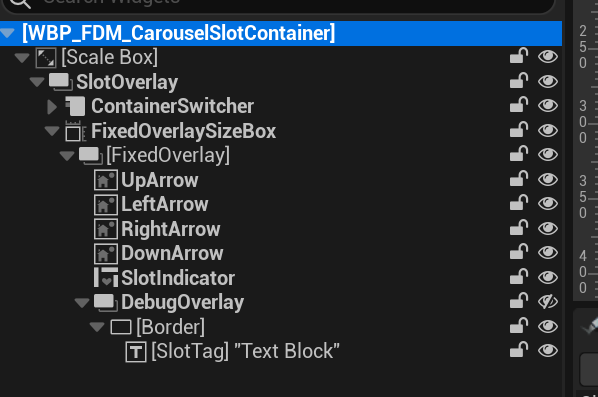
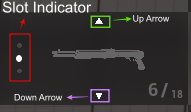
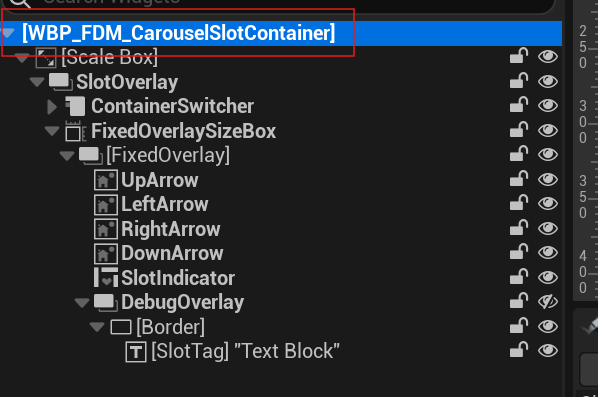
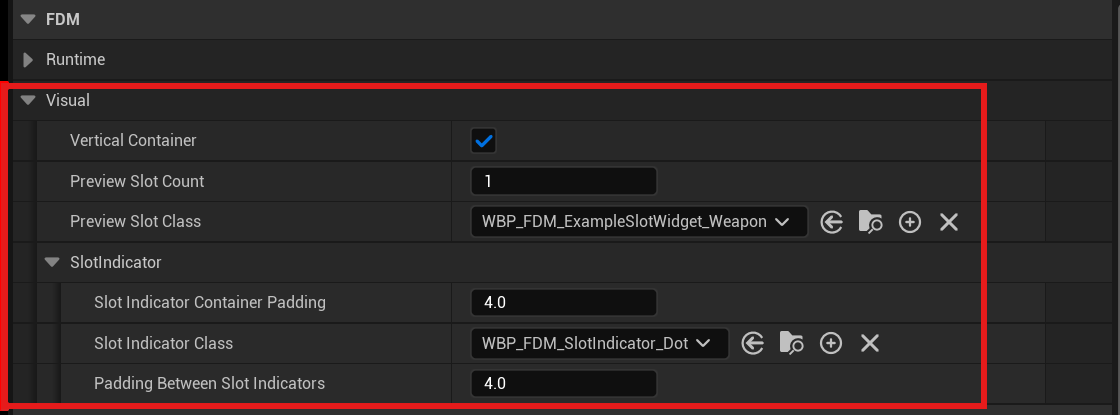
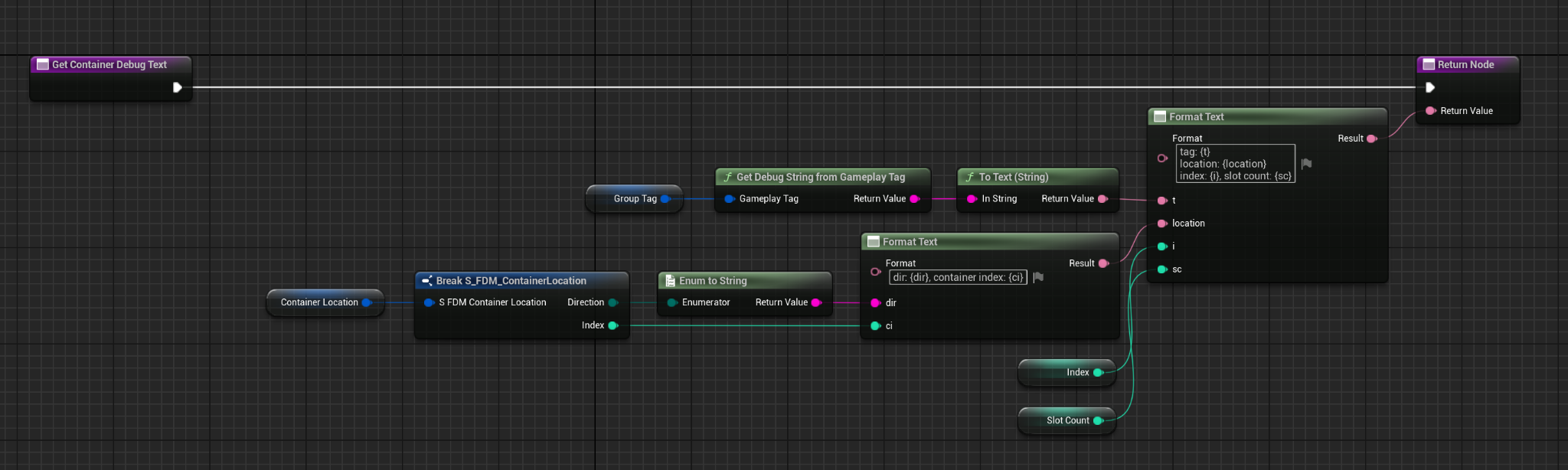
Slot Widgets are not added directly to the main menu widget. Instead, they are stored inside an additional container widget that wraps them. You can find it in: Game/FlexibleDirectionalMenu/Widgets/Containers/WBP_FDM_CarouselSlotContainer image72 horizontal-nested You can change the sliding speed in the config file (that derives from PDA_FDM_PrimaryConfig) > SlotInterpSpeed. In addition to handling transitions, WBP_FDM_CarouselSlotContainer is also responsible for updating and maintaining the layout and visibility of slot widgets when entries are added, removed, or moved. To customize the slot container, open it: image73 FixedOverlay has some widget elements like UpArrow, DownArrow, LeftArrow, RightArrow and SlotIndicator. image74 The visibility of these elements is automatically adjusted according to the number of slots in the widget and the active index. You can change their brush and adjust their location and padding within the WBP_FDM_CarouselSlotContainer. Or you can delete them if you want. If you select the root of the widget: image75 and look at the Details panel, you will see some settings: image76 You can assign a preview slot class and slot count for debugging. “Vertical Container” gets overridden at runtime on Container Initialization but that does not prevent you from using it at editor time. If “Vertical Container” is checked, the container will use a vertical box to store widget slots, otherwise it will use a horizontal box. And you change Slot Indicator class and paddings (even though some changes does not get update in the editor since they use interface calls). You can turn on container debugging by changing DebugOverlay’s Visibility, which is Hidden by default. image77 and you can modify debug’s in the Get Container Debug Text function. image78