|
WBP_FDM_Widget
│
├── DirectionGroup_Up (WBP_FDM_SlotContainerDirectionGroup)
│ └── CarouselContainer_0 (WBP_FDM_CarouselSlotContainer)
│ ├── EntrySlot_0 (WBP_FDM_EntrySlot)
│ ├── EntrySlot_1
│ └── EntrySlot_2
│
├── DirectionGroup_Down (WBP_FDM_SlotContainerDirectionGroup)
│ └── CarouselContainer_0
│ ├── EntrySlot_0
│ └── EntrySlot_1
│
├── DirectionGroup_Left (WBP_FDM_SlotContainerDirectionGroup)
│ └── CarouselContainer_0
│ ├── EntrySlot_0
│ └── EntrySlot_1
│
└── DirectionGroup_Right (WBP_FDM_SlotContainerDirectionGroup)
├── CarouselContainer_0
│ ├── EntrySlot_0
│ └── EntrySlot_1
└── CarouselContainer_1
├── EntrySlot_0
└── EntrySlot_1 By default, Flexible Directional Menu spawns and manages its own main UI wrapper widget (
WBP_FDM_MainHUD). This behavior is determined by the Use System Defined Main Widget boolean inside the primary config data asset.

- Spawns
WBP_FDM_MainHUDduring initialization, - Adds it to the viewport,
- Retrieves the internal
WBP_FDM_Widgetinstance from it and uses it as the menu UI.
Using Your Own Main / Wrapper / Root Widget
To use your own main widget instead ofWBP_FDM_MainHUD, follow these steps:
Step 1 — Add WBP_FDM_Widget to your own HUD
Inside your own main widget (for example WBP_GameplayHUD):
- Add
WBP_FDM_Widgetas a child widget. - Position and size it as desired (anchors, alignment, scale, etc.). You can wrap it with Size Box and Scale Box.
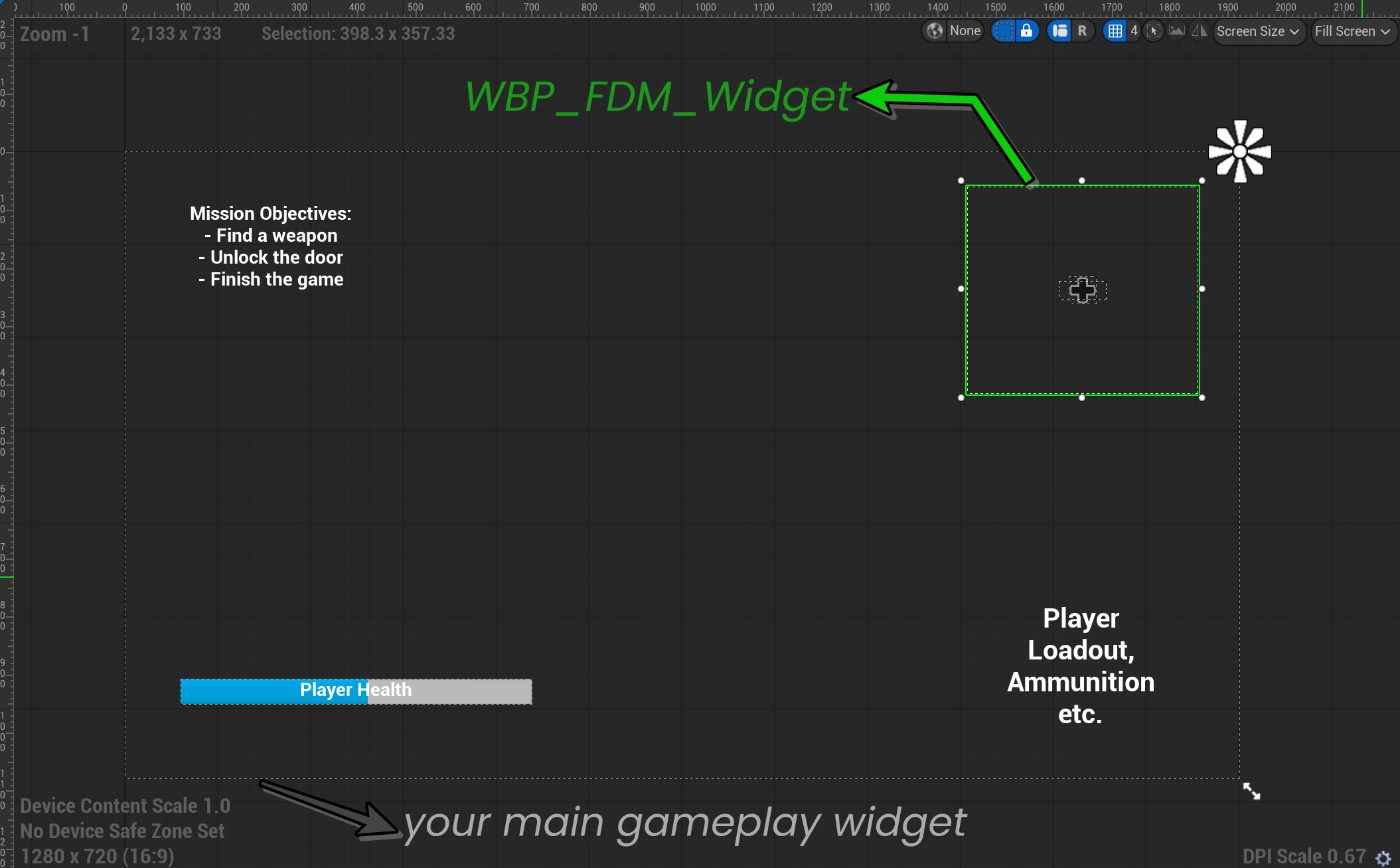
- Make sure the wrapper widget is created and added to the viewport as part of your normal HUD flow.
Step 2 — Disable the system-defined main widget
In your primary config data asset:- Set Use System Defined Main Widget to false.
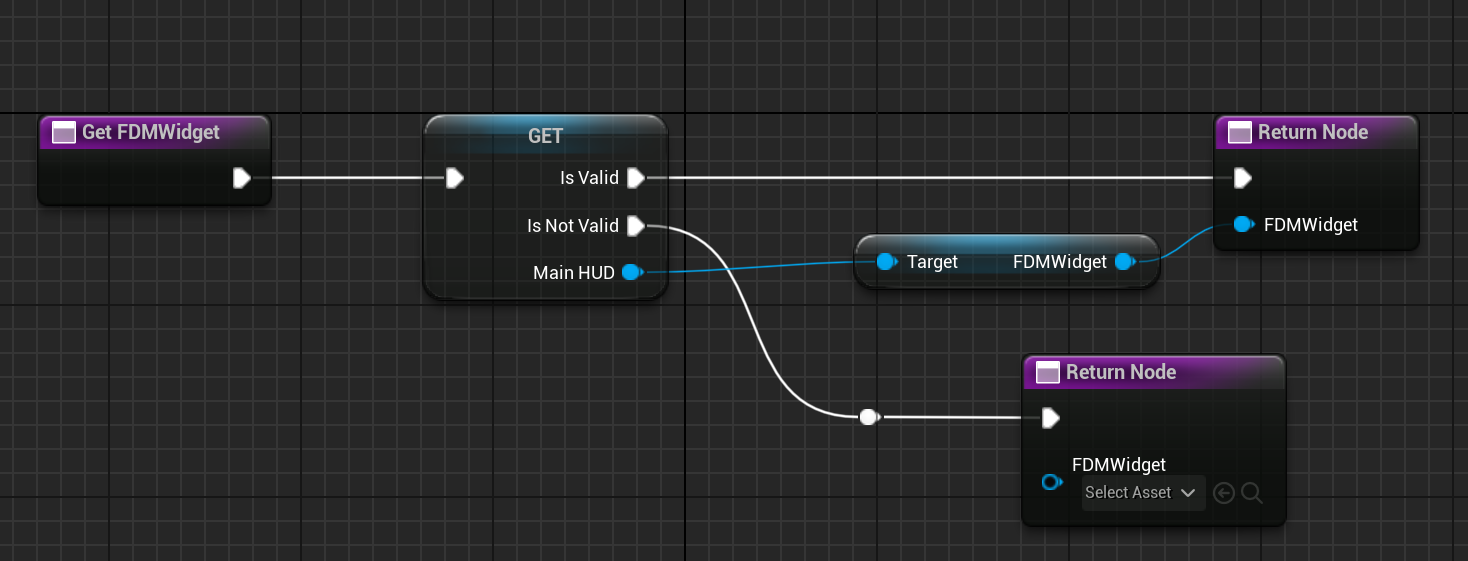
Step 3 — Implement the Component Owner Interface
On the actor that owns theAC_FDM_Component (usually the Player Character or Player Controller):
- Implement the
BPI_FDM_ComponentOwnerinterface. - Implement the function
Get FDM Widget. - Return the reference to the
WBP_FDM_Widgetinstance that you added to your own HUD.