> ## Documentation Index
> Fetch the complete documentation index at: https://fdm.furkankursav.com/llms.txt
> Use this file to discover all available pages before exploring further.
# Slot Widget
A **Slot Widget** is the visual representation of an Entry. It must implement the `WBPI_FDM_EntrySlot` interface. When an entry is added to the menu, the corresponding widget class (`WidgetSlotClass` from Metadata) is created and added to the menu, then the **InitializeSlot** interface function is called.
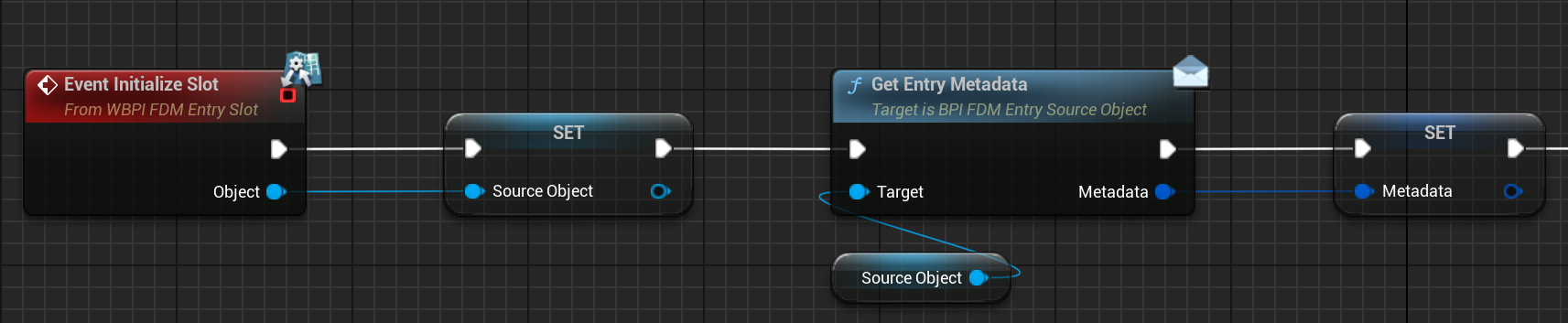 and that’s how you can customize your widget by accessing Metadata.
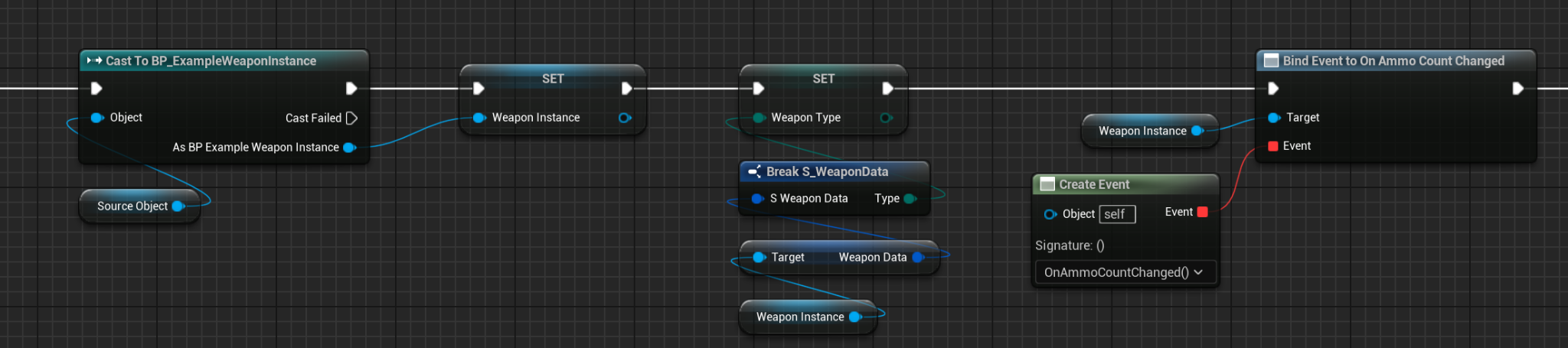 Additionally, you can keep the UI up-to-date by casting the Source Object given as a parameter to your own class and binding events.
And the other `WBPI_FDM_EntrySlot` interface function is **Set Widget Slot State**.
Additionally, you can keep the UI up-to-date by casting the Source Object given as a parameter to your own class and binding events.
And the other `WBPI_FDM_EntrySlot` interface function is **Set Widget Slot State**.
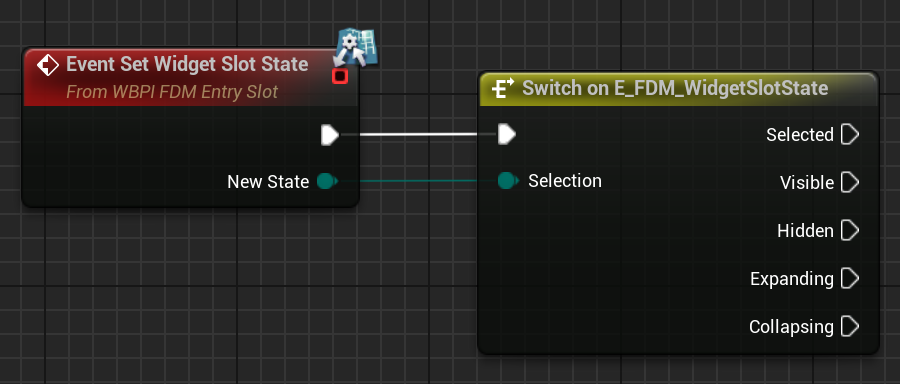 This function is called to determine the visibility of the slot widget. You can use different techniques for hiding/showing your widget. I believe that the Selected, Visible, and Hidden states explain themselves; I will explain the Expanding and Collapsing states later.