> ## Documentation Index
> Fetch the complete documentation index at: https://fdm.furkankursav.com/llms.txt
> Use this file to discover all available pages before exploring further.
# Hierarchy
WBP\_FDM\_MainHUD / your own gameplay HUD widget (Root)\
|\
WBP\_FDM\_Widget\
│\
├── DirectionGroup\_Up (WBP\_FDM\_SlotContainerDirectionGroup)\
│ └── CarouselContainer\_0 (WBP\_FDM\_CarouselSlotContainer)\
│ ├── EntrySlot\_0 (WBP\_FDM\_EntrySlot)\
│ ├── EntrySlot\_1\
│ └── EntrySlot\_2\
│\
├── DirectionGroup\_Down (WBP\_FDM\_SlotContainerDirectionGroup)\
│ └── CarouselContainer\_0\
│ ├── EntrySlot\_0\
│ └── EntrySlot\_1\
│\
├── DirectionGroup\_Left (WBP\_FDM\_SlotContainerDirectionGroup)\
│ └── CarouselContainer\_0\
│ ├── EntrySlot\_0\
│ └── EntrySlot\_1\
│\
└── DirectionGroup\_Right (WBP\_FDM\_SlotContainerDirectionGroup)\
├── CarouselContainer\_0\
│ ├── EntrySlot\_0\
│ └── EntrySlot\_1\
└── CarouselContainer\_1\
├── EntrySlot\_0\
└── EntrySlot\_1
By default, Flexible Directional Menu spawns and manages its own main UI wrapper widget (`WBP_FDM_MainHUD`). This behavior is determined by the **Use System Defined Main Widget** boolean inside the primary config data asset.
 When this option is enabled, the system:
* Spawns `WBP_FDM_MainHUD` during initialization,
* Adds it to the viewport,
* Retrieves the internal `WBP_FDM_Widget` instance from it and uses it as the menu UI.
This setup is intended for quick integration and prototyping.
However, in many projects you will already have a main HUD widget (e.g. a gameplay HUD showing health, loadout, objectives, etc.),
and you may want the FDM menu to be embedded inside that existing widget instead of using the system-defined one.
### Using Your Own Main / Wrapper / Root Widget
To use your own main widget instead of `WBP_FDM_MainHUD`, follow these steps:
#### Step 1 — Add `WBP_FDM_Widget` to your own HUD
Inside your own main widget (for example `WBP_GameplayHUD`):
* Add `WBP_FDM_Widget` as a child widget.
* Position and size it as desired (anchors, alignment, scale, etc.). You can wrap it with **Size Box** and **Scale Box**.
When this option is enabled, the system:
* Spawns `WBP_FDM_MainHUD` during initialization,
* Adds it to the viewport,
* Retrieves the internal `WBP_FDM_Widget` instance from it and uses it as the menu UI.
This setup is intended for quick integration and prototyping.
However, in many projects you will already have a main HUD widget (e.g. a gameplay HUD showing health, loadout, objectives, etc.),
and you may want the FDM menu to be embedded inside that existing widget instead of using the system-defined one.
### Using Your Own Main / Wrapper / Root Widget
To use your own main widget instead of `WBP_FDM_MainHUD`, follow these steps:
#### Step 1 — Add `WBP_FDM_Widget` to your own HUD
Inside your own main widget (for example `WBP_GameplayHUD`):
* Add `WBP_FDM_Widget` as a child widget.
* Position and size it as desired (anchors, alignment, scale, etc.). You can wrap it with **Size Box** and **Scale Box**.
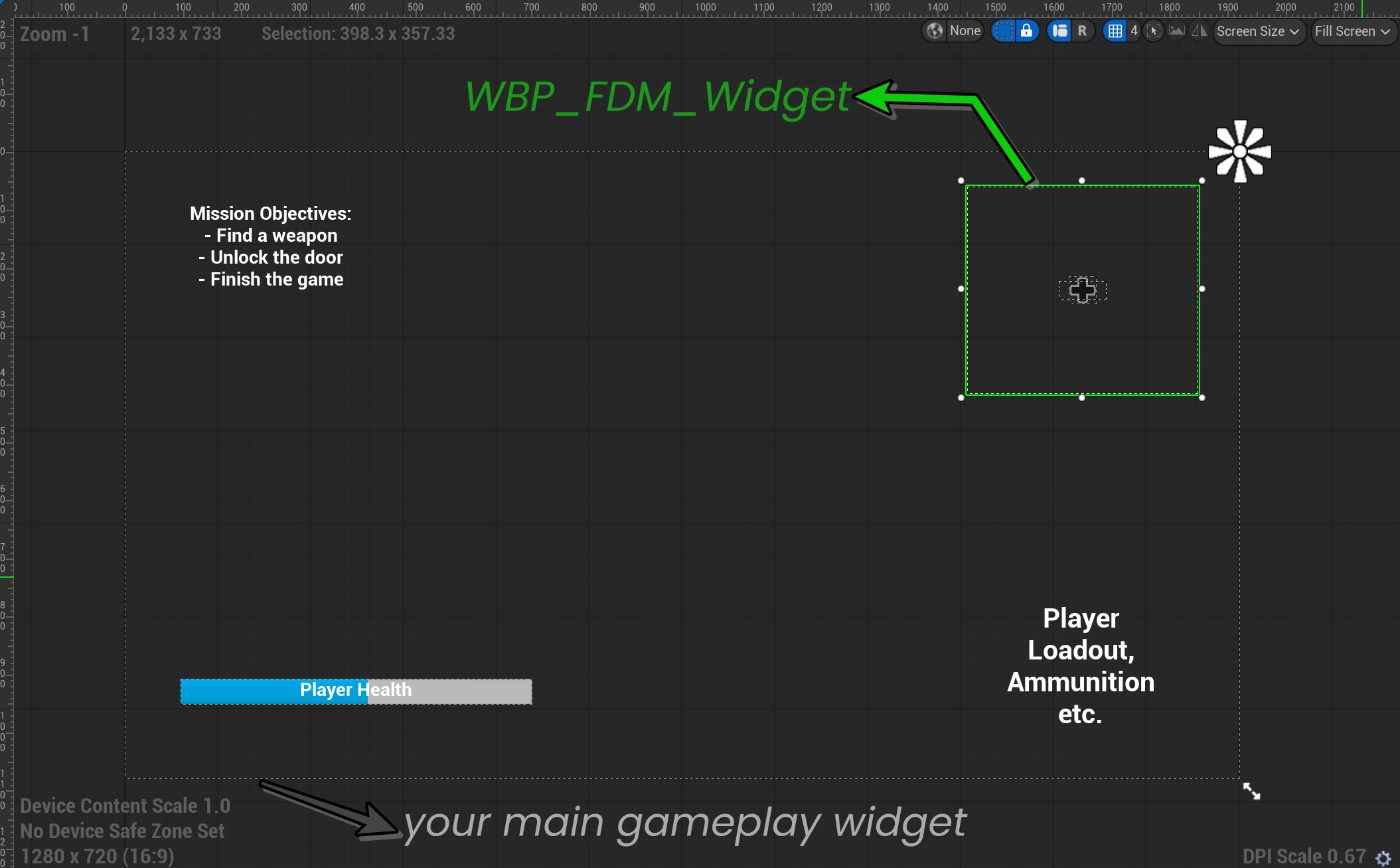 * Make sure the wrapper widget is created and added to the viewport as part of your normal HUD flow.
#### Step 2 — Disable the system-defined main widget
In your primary config data asset:
* Set **Use System Defined Main Widget** to **false**.
#### Step 3 — Implement the Component Owner Interface
On the actor that owns the `AC_FDM_Component` (usually the Player Character or Player Controller):
* Implement the `BPI_FDM_ComponentOwner` interface.
* Implement the function `Get FDM Widget`.
* Return the reference to the `WBP_FDM_Widget` instance that you added to your own HUD.
* Make sure the wrapper widget is created and added to the viewport as part of your normal HUD flow.
#### Step 2 — Disable the system-defined main widget
In your primary config data asset:
* Set **Use System Defined Main Widget** to **false**.
#### Step 3 — Implement the Component Owner Interface
On the actor that owns the `AC_FDM_Component` (usually the Player Character or Player Controller):
* Implement the `BPI_FDM_ComponentOwner` interface.
* Implement the function `Get FDM Widget`.
* Return the reference to the `WBP_FDM_Widget` instance that you added to your own HUD.
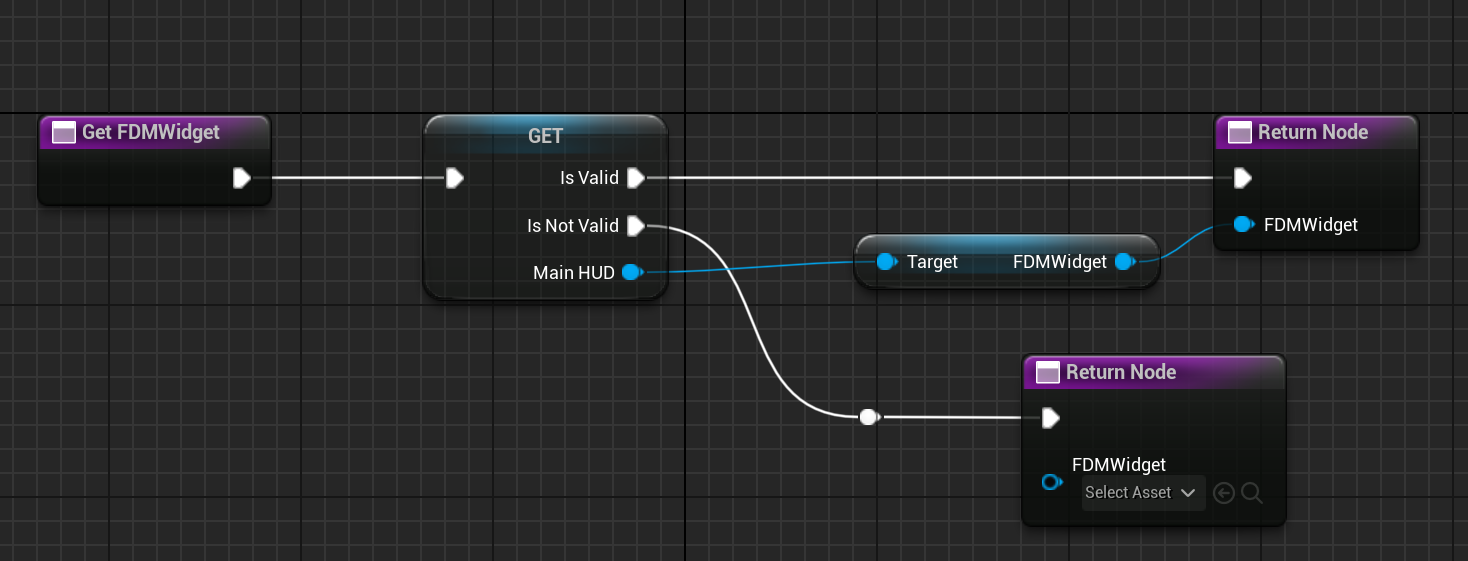 This allows the component to retrieve and control the correct menu widget without knowing about your HUD structure.