> ## Documentation Index
> Fetch the complete documentation index at: https://fdm.furkankursav.com/llms.txt
> Use this file to discover all available pages before exploring further.
# WBP_FDM_CarouselSlotContainer
Slot Widgets are not added directly to the main menu widget. Instead, they are stored inside an additional container widget that wraps them.
You can find it in:
`Game/FlexibleDirectionalMenu/Widgets/Containers/WBP_FDM_CarouselSlotContainer`
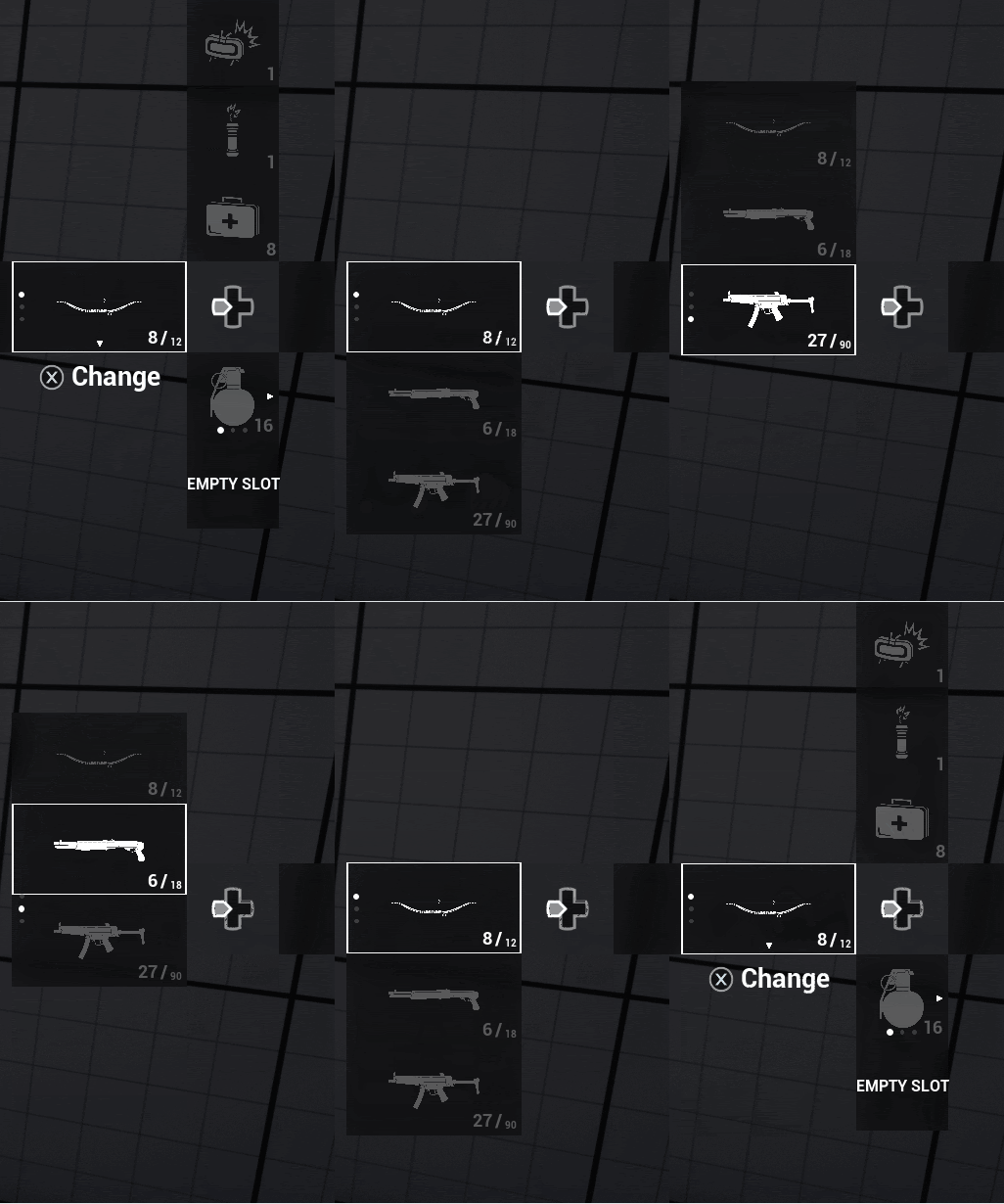
 You can change the sliding speed in the config file (that derives from `PDA_FDM_PrimaryConfig`) > SlotInterpSpeed.
In addition to handling transitions, `WBP_FDM_CarouselSlotContainer` is also responsible for updating and maintaining the layout and visibility of slot widgets when entries are added, removed, or moved.
To customize the slot container, open it:
You can change the sliding speed in the config file (that derives from `PDA_FDM_PrimaryConfig`) > SlotInterpSpeed.
In addition to handling transitions, `WBP_FDM_CarouselSlotContainer` is also responsible for updating and maintaining the layout and visibility of slot widgets when entries are added, removed, or moved.
To customize the slot container, open it:
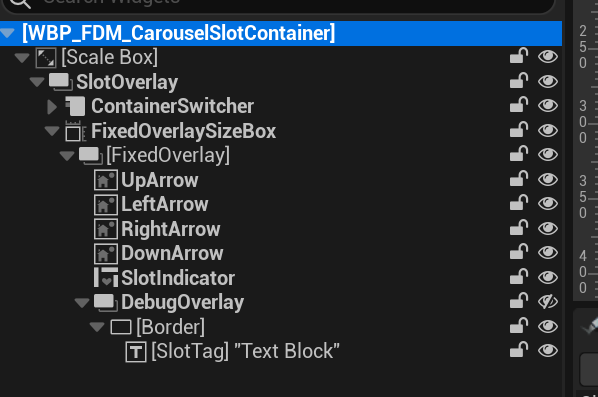 FixedOverlay has some widget elements like UpArrow, DownArrow, LeftArrow, RightArrow and SlotIndicator.
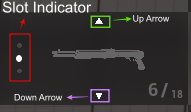 The visibility of these elements is automatically adjusted according to the number of slots in the widget and the active index. You can change their brush and adjust their location and padding within the `WBP_FDM_CarouselSlotContainer`. Or you can delete them if you want.
If you select the root of the widget:
The visibility of these elements is automatically adjusted according to the number of slots in the widget and the active index. You can change their brush and adjust their location and padding within the `WBP_FDM_CarouselSlotContainer`. Or you can delete them if you want.
If you select the root of the widget:
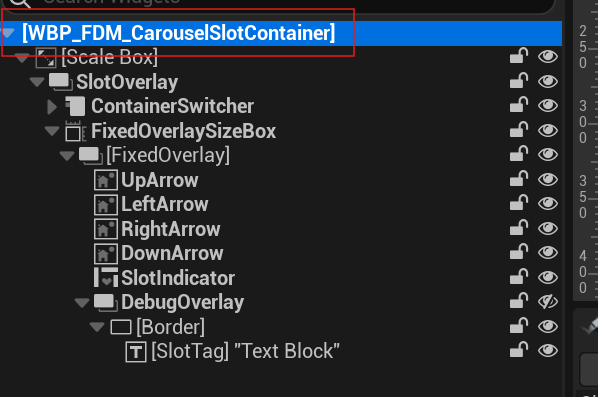 and look at the Details panel, you will see some settings:
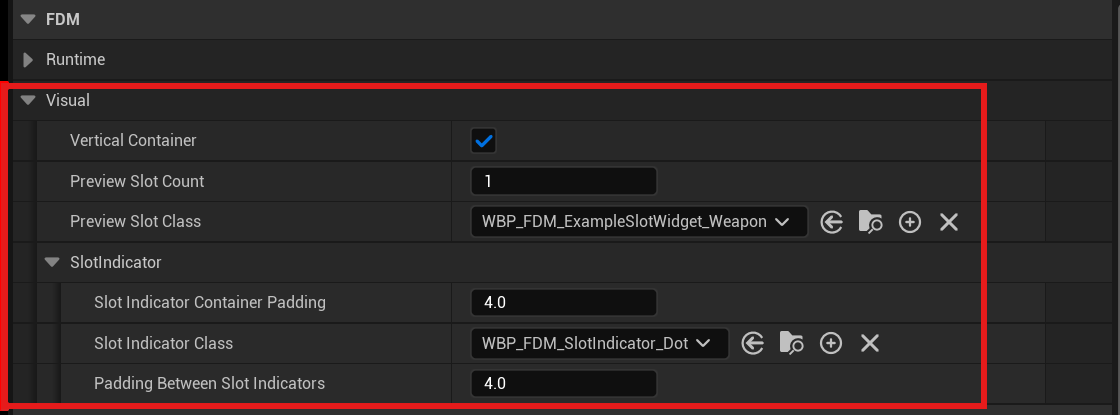 You can assign a preview slot class and slot count for debugging. “Vertical Container” gets overridden at runtime on Container Initialization but that does not prevent you from using it at editor time. If “Vertical Container” is checked, the container will use a vertical box to store widget slots, otherwise it will use a horizontal box. And you change Slot Indicator class and paddings (even though some changes does not get update in the editor since they use interface calls).
You can turn on container debugging by changing DebugOverlay’s Visibility, which is Hidden by default.
You can assign a preview slot class and slot count for debugging. “Vertical Container” gets overridden at runtime on Container Initialization but that does not prevent you from using it at editor time. If “Vertical Container” is checked, the container will use a vertical box to store widget slots, otherwise it will use a horizontal box. And you change Slot Indicator class and paddings (even though some changes does not get update in the editor since they use interface calls).
You can turn on container debugging by changing DebugOverlay’s Visibility, which is Hidden by default.
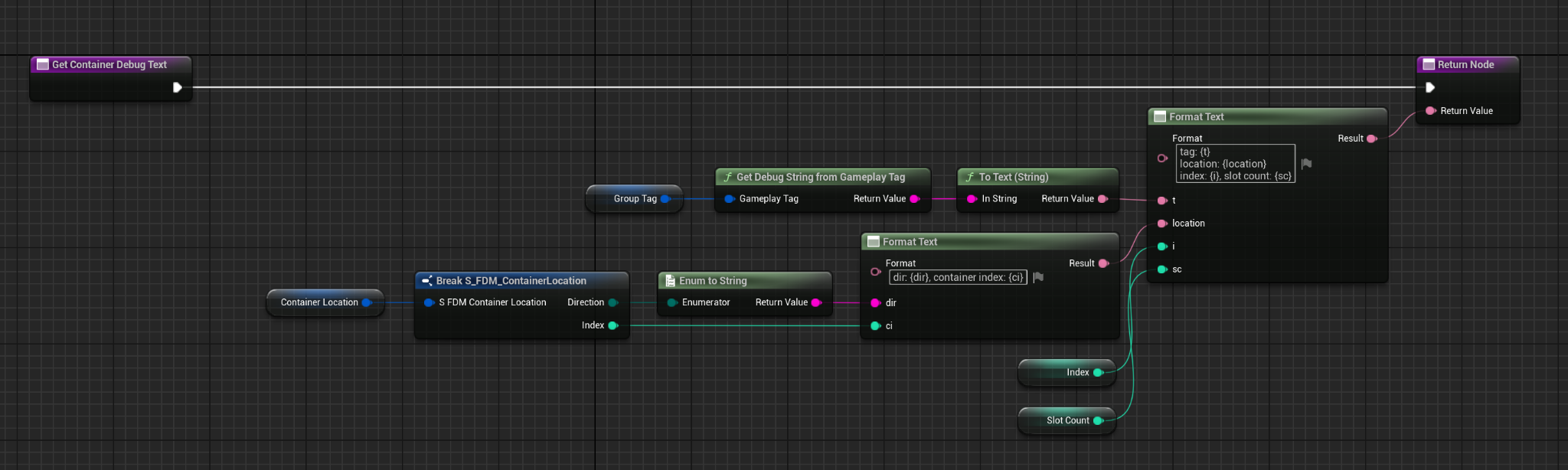
 and you can modify debug’s in the Get Container Debug Text function.