> ## Documentation Index
> Fetch the complete documentation index at: https://fdm.furkankursav.com/llms.txt
> Use this file to discover all available pages before exploring further.
# FAQ & Troubleshooting
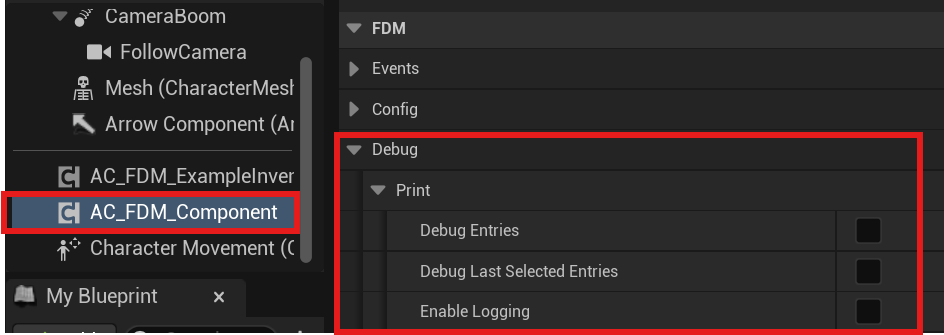
First of all, enabling logging and debugging in the Component may be helpful.
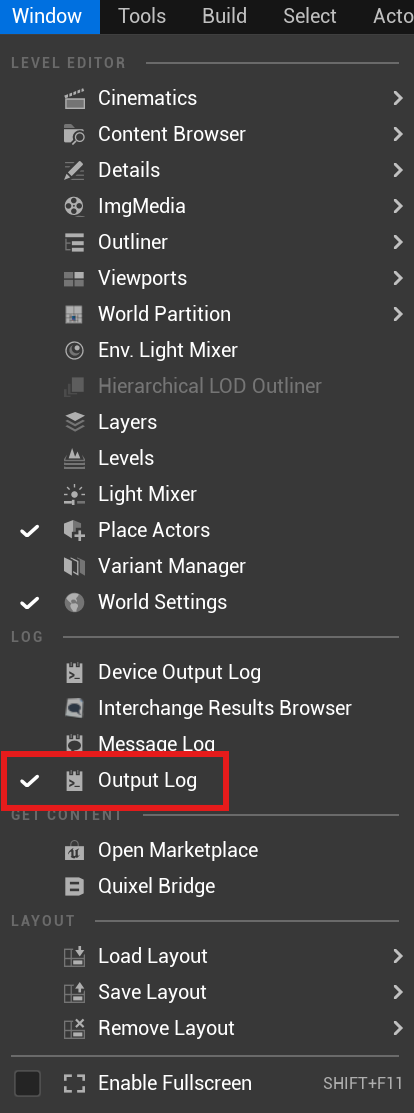
 However, since some logs are only written in **Output Log**, it will be useful to open it.
 ## Input & Visibility
#### The menu does not appear when I press the input key.
Check the following:
* If you have deactivated the "Use System Defined Main Widget" option, you must implement the `BPI_FDM_ComponentOwner` interface and the `Get FDM Widget` function in the actor where you add the Component.
* Ensure `AC_FDM_Component` is added to the correct actor (usually the Player Character or Controller) and Input Action Events bound correctly.
* Verify that `InitializeFDMComponent` is called during BeginPlay or initialization.
* If you disabled `Auto Bind Navigation Mapping Context` in your config, you must call `Bind Navigation Mapping Context` manually after you called the initialization function.
* Make sure `Navigation Input Mapping Context` in the Config file is valid.
* If `Widget Should Be Hidden by Default` is enabled, ensure `RequestShowMenu` is being called.
* Increasing `Navigation Mapping Context Priority` might solve this problem.
#### The menu appears but does not respond to input.
In addition to methods that could solve the previous problem check the following:
* Check that no other system is currently consuming input (e.g., modal widgets, pause menu).
* Confirm `Should Process FDM Input` function in `AC_FDM_Component` returns true.
#### The Menu appears twice
This usually means:
* `Use System Defined Main Widget` is still enabled, and
* You also manually added `WBP_FDM_Widget` to your own HUD.
Disable the system widget or remove your manual instance to avoid duplicates.
#### Which actor should implement `BPI_FDM_ComponentOwner`?
Typically the Player Character or Player Controller — whichever owns the `AC_FDM_Component`.
#### Slot Switch Menu does not open
* Check that the container has more than one slot.
* Verify the `Change Slot Mapping Context` is active.
* Ensure that the input is not being consumed by another system. Increasing `Change Slot Mapping Context Priority` might solve this problem.
#### My entries are not being added to the menu.
* Make sure the source object implements `BPI_FDM_EntrySourceObject`.
* Verify that `GetEntryMetadata` returns a valid metadata struct.
* Check that the Layout Tag in metadata exists in `Layout Data` in the config.
## Layout & Placement
#### My entry appears in the wrong container or direction
* Check the Gameplay Tag in the entry metadata.
* Verify that the tag maps to the intended container location in `Layout Data`.
* Remember: Layout initialization order determines proximity to the center.
#### Entries overlap or spacing looks wrong
* Verify `Padding Between Slots` and `Padding Between Containers`.
* Check that all Slot Widgets use consistent size or scaling rules.
* Ensure no external layout panels override widget size.
#### The slot animation looks jittery or overshoots
* Reduce `Slot Interp Speed` or `Accordion Animation Interp Speed`.
* Make sure animation logic is not running in Event Tick unnecessarily.
* Avoid simultaneously driving position from animation and manual interpolation.
## Appearance
#### Why do some slot widgets ignore show/hide animations?
This can happen if the slot uses a material with **Blend Mode** set to **Opacity Mask**.
Opacity Mask materials do not always respond correctly to UI fade animations.
To fix this, change the material’s Blend Mode to **Translucent**.
#### Why doesn’t my icon size match the value I set in metadata?
When a slot is added to the menu, it is automatically wrapped inside a **SizeBox** for layout control.
If your icon appears smaller or larger than expected, this is likely due to the SizeBox scaling behavior.
Instead of increasing the icon size in metadata, adjust the slot’s **Render Transform → Scale** value in metadata.
## Selection
#### Selection feels too fast / too sensitive or Selection triggers while navigating quickly between containers
* Enable `Use Debounced Selection`.
* Increase `Debounce Duration in Seconds`.
## Performance
#### Is this system expensive?
No — the menu only updates when:
* Entries change,
* Selection changes,
* The menu is visible.
There is no heavy per-frame logic unless explicitly enabled by the user.
## Networking
#### Is it safe to use in multiplayer?
This system is UI-side and non-replicated by default. It is safe for multiplayer, but entry and selection replication must be handled by the game.
## Integration
#### Can I use this with my own inventory system?
Yes. Any object can be an entry as long as it implements `BPI_FDM_EntrySourceObject` and provides valid metadata.
#### Can I use this without the example inventory system?
Absolutely. The example inventory is only provided as a reference implementation.
## Input & Visibility
#### The menu does not appear when I press the input key.
Check the following:
* If you have deactivated the "Use System Defined Main Widget" option, you must implement the `BPI_FDM_ComponentOwner` interface and the `Get FDM Widget` function in the actor where you add the Component.
* Ensure `AC_FDM_Component` is added to the correct actor (usually the Player Character or Controller) and Input Action Events bound correctly.
* Verify that `InitializeFDMComponent` is called during BeginPlay or initialization.
* If you disabled `Auto Bind Navigation Mapping Context` in your config, you must call `Bind Navigation Mapping Context` manually after you called the initialization function.
* Make sure `Navigation Input Mapping Context` in the Config file is valid.
* If `Widget Should Be Hidden by Default` is enabled, ensure `RequestShowMenu` is being called.
* Increasing `Navigation Mapping Context Priority` might solve this problem.
#### The menu appears but does not respond to input.
In addition to methods that could solve the previous problem check the following:
* Check that no other system is currently consuming input (e.g., modal widgets, pause menu).
* Confirm `Should Process FDM Input` function in `AC_FDM_Component` returns true.
#### The Menu appears twice
This usually means:
* `Use System Defined Main Widget` is still enabled, and
* You also manually added `WBP_FDM_Widget` to your own HUD.
Disable the system widget or remove your manual instance to avoid duplicates.
#### Which actor should implement `BPI_FDM_ComponentOwner`?
Typically the Player Character or Player Controller — whichever owns the `AC_FDM_Component`.
#### Slot Switch Menu does not open
* Check that the container has more than one slot.
* Verify the `Change Slot Mapping Context` is active.
* Ensure that the input is not being consumed by another system. Increasing `Change Slot Mapping Context Priority` might solve this problem.
#### My entries are not being added to the menu.
* Make sure the source object implements `BPI_FDM_EntrySourceObject`.
* Verify that `GetEntryMetadata` returns a valid metadata struct.
* Check that the Layout Tag in metadata exists in `Layout Data` in the config.
## Layout & Placement
#### My entry appears in the wrong container or direction
* Check the Gameplay Tag in the entry metadata.
* Verify that the tag maps to the intended container location in `Layout Data`.
* Remember: Layout initialization order determines proximity to the center.
#### Entries overlap or spacing looks wrong
* Verify `Padding Between Slots` and `Padding Between Containers`.
* Check that all Slot Widgets use consistent size or scaling rules.
* Ensure no external layout panels override widget size.
#### The slot animation looks jittery or overshoots
* Reduce `Slot Interp Speed` or `Accordion Animation Interp Speed`.
* Make sure animation logic is not running in Event Tick unnecessarily.
* Avoid simultaneously driving position from animation and manual interpolation.
## Appearance
#### Why do some slot widgets ignore show/hide animations?
This can happen if the slot uses a material with **Blend Mode** set to **Opacity Mask**.
Opacity Mask materials do not always respond correctly to UI fade animations.
To fix this, change the material’s Blend Mode to **Translucent**.
#### Why doesn’t my icon size match the value I set in metadata?
When a slot is added to the menu, it is automatically wrapped inside a **SizeBox** for layout control.
If your icon appears smaller or larger than expected, this is likely due to the SizeBox scaling behavior.
Instead of increasing the icon size in metadata, adjust the slot’s **Render Transform → Scale** value in metadata.
## Selection
#### Selection feels too fast / too sensitive or Selection triggers while navigating quickly between containers
* Enable `Use Debounced Selection`.
* Increase `Debounce Duration in Seconds`.
## Performance
#### Is this system expensive?
No — the menu only updates when:
* Entries change,
* Selection changes,
* The menu is visible.
There is no heavy per-frame logic unless explicitly enabled by the user.
## Networking
#### Is it safe to use in multiplayer?
This system is UI-side and non-replicated by default. It is safe for multiplayer, but entry and selection replication must be handled by the game.
## Integration
#### Can I use this with my own inventory system?
Yes. Any object can be an entry as long as it implements `BPI_FDM_EntrySourceObject` and provides valid metadata.
#### Can I use this without the example inventory system?
Absolutely. The example inventory is only provided as a reference implementation.