> ## Documentation Index
> Fetch the complete documentation index at: https://fdm.furkankursav.com/llms.txt
> Use this file to discover all available pages before exploring further.
# Input Handling
AC\_FDM\_Component does not listen for navigation inputs; it only listens for container open/close inputs. It leaves the task of listening for navigation inputs and calling functions based on those inputs to the user.
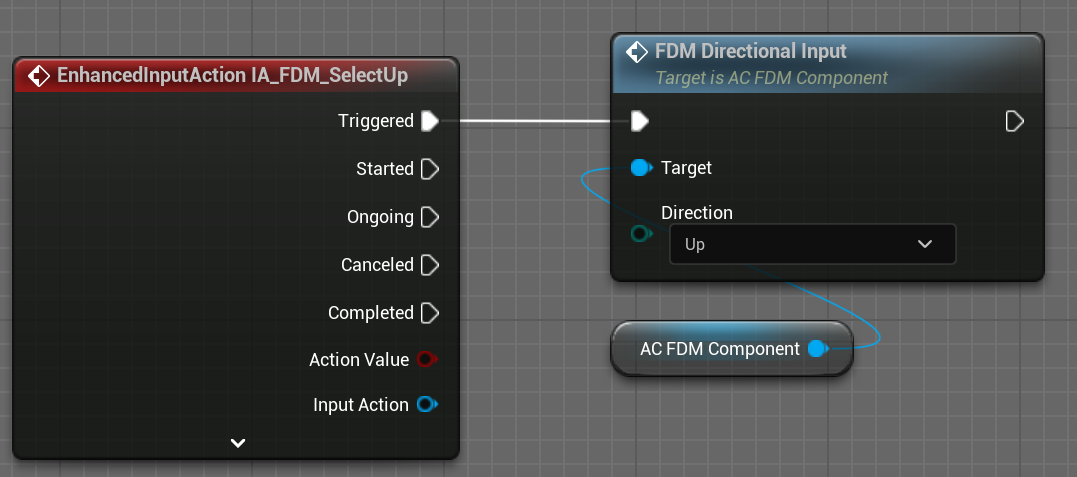
As I mentioned in the Quick Start section, you need to implement `IA_FDM_SelectUp`, `IA_FDM_SelectDown`, `IA_FDM_SelectLeft`, `IA_FDM_SelectRight` input action events in your character/player controller.
Then you need to call FDM Directional Input function on Triggered Event with corresponding direction input
 | Input Action | Direction |
| -------------------- | --------- |
| IA\_FDM\_SelectUp | Up |
| IA\_FDM\_SelectDown | Down |
| IA\_FDM\_SelectLeft | Left |
| IA\_FDM\_SelectRight | Right |
By default, FDM Component applies Navigation Mapping Context to Player Input automatically after the initialization, but you might not always want to apply the mapping context at the beginning, so you have the option to disable it from within the config asset.
| Input Action | Direction |
| -------------------- | --------- |
| IA\_FDM\_SelectUp | Up |
| IA\_FDM\_SelectDown | Down |
| IA\_FDM\_SelectLeft | Left |
| IA\_FDM\_SelectRight | Right |
By default, FDM Component applies Navigation Mapping Context to Player Input automatically after the initialization, but you might not always want to apply the mapping context at the beginning, so you have the option to disable it from within the config asset.
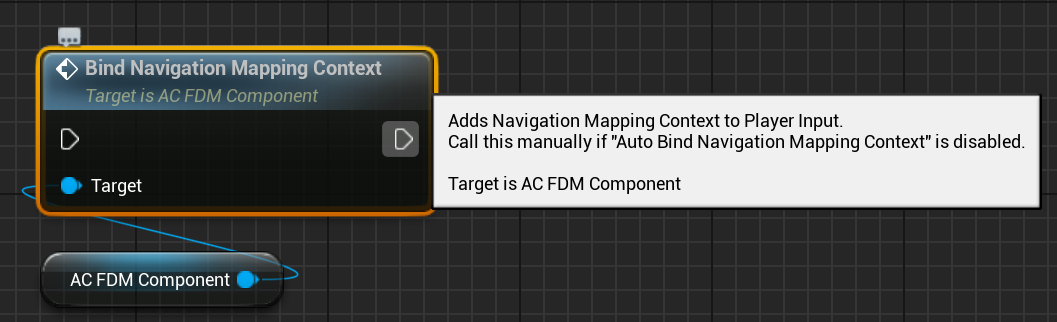
 If you turn off “Auto Bind Navigation Mapping Context” which is enabled by default in the configuration asset, you need to call the “Bind Navigation Mapping Context” function of AC\_FDM\_Component after the initialization.
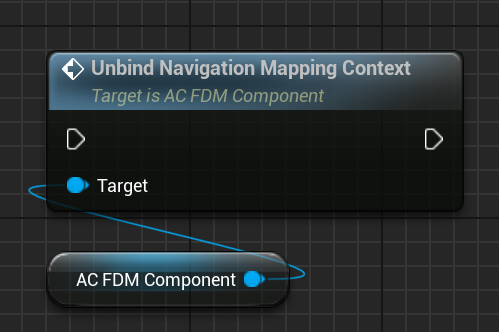
 and you can call the unbinding function whenever you want.
 Unlike the navigation inputs, the slot changing input is handled automatically.
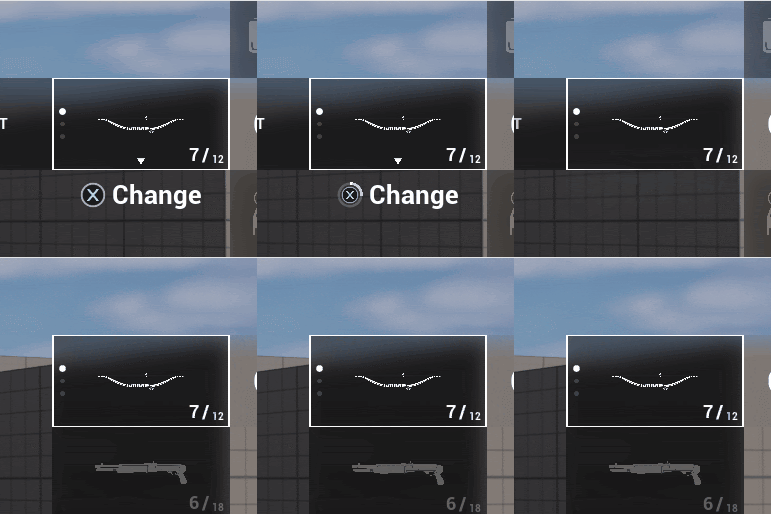 You can change the hold duration in the configuration asset.
 And the component throws some events during the container opening/closing process.
* **On Slot Action Started:** When you start holding down the button
* **On Slot Action Progress(float):** When pressing the button and the container has not yet opened
* **On Slot Action Triggered:** When you press and hold the button long enough
* **On Slot Action Completed:** When you held the button enough
* **On Slot Action Cancelled:** When you release the button before you hold it enough.
* **On Nested Menu Changed:** When you open or close a container.
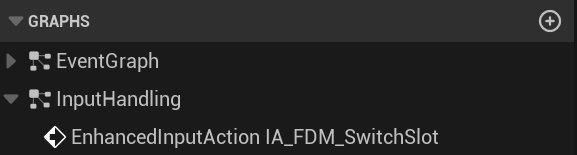
You can see this process in `AC_FDM_Component > Input Handling Graph`.
And the component throws some events during the container opening/closing process.
* **On Slot Action Started:** When you start holding down the button
* **On Slot Action Progress(float):** When pressing the button and the container has not yet opened
* **On Slot Action Triggered:** When you press and hold the button long enough
* **On Slot Action Completed:** When you held the button enough
* **On Slot Action Cancelled:** When you release the button before you hold it enough.
* **On Nested Menu Changed:** When you open or close a container.
You can see this process in `AC_FDM_Component > Input Handling Graph`.